


Lenovo Docking Stations: Compatibility, Setup & Best Models Compared
Modern workspaces often require more than just a laptop. Many professionals use external monitors, keyboards, storage devices, webcams, and wired internet connections every day. A reliable docking station helps simplify these connections and creates a more efficient workstation setup.
For Lenovo laptop users, choosing the right dock can improve productivity, reduce cable clutter, and support multi-device connectivity. Whether you work from home, in an office, or in a hybrid environment, understanding how a lenovo docking station works can help you make the right purchase decision.
This guide explores compatibility, setup instructions, important features, and the best Lenovo docking station models currently available. It also explains how to choose the right dock for your specific laptop and workflow requirements.
In addition, trusted providers like Docks4U offer a wide selection of refurbished and tested docking solutions for different Lenovo devices.
What Is a Lenovo Docking Station?
A docking station is a hardware accessory that expands your laptop’s connectivity options. Instead of plugging multiple devices directly into your laptop, the dock acts as a central hub.
A typical laptop docking station lenovo setup may support:
- External monitors
- USB accessories
- Ethernet connections
- Audio devices
- SD card readers
- Charging support
- HDMI or DisplayPort outputs
Docking stations are especially useful for business professionals and remote workers who frequently connect and disconnect their laptops from desk setups.
Many Lenovo users prefer a lenovo dock station because it creates a cleaner workspace and allows faster transitions between mobile and desktop work environments.
Why Lenovo Docking Stations Are Popular
Lenovo laptops, especially ThinkPad models, are commonly used in business and professional environments. As a result, Lenovo has developed several docking solutions designed for compatibility, performance, and reliability.
Key advantages include:
Easy Workspace Connectivity
A docking station lenovo solution allows users to connect multiple devices using a single cable connection.
Multi-Monitor Support
Many Lenovo docks support dual or triple-display configurations, which are useful for multitasking and productivity.
Fast Charging Capabilities
Several Lenovo docks provide power delivery support, reducing the need for separate charging adapters.
Better Cable Management
Docking stations help reduce desk clutter by centralizing cables and accessories.
Enterprise-Level Compatibility
Many Lenovo docking solutions are optimized for ThinkPad devices and enterprise work environments.
You can explore various Lenovo dock models through the Lenovo Docks collection available from Docks4U.
Types of Lenovo Docking Stations
Not all docking stations are the same. Lenovo offers multiple dock types depending on laptop connectivity standards.
USB-C Docking Stations
USB-C docks are among the most common modern solutions. These docks support charging, display output, and data transfer through one cable.
Benefits include:
- Universal compatibility
- Faster setup
- Compact design
- Suitable for modern ThinkPads
A lenovo docking station for laptop setups using USB-C is ideal for most remote workers and office users.
Thunderbolt Docking Stations
Thunderbolt docks provide higher bandwidth and support advanced workflows such as:
- Multiple 4K displays
- High-speed file transfers
- Professional creative workstations
These are commonly used by designers, engineers, and video editors.
Mechanical Docking Stations
Older ThinkPad models often used mechanical docks that physically connected to the underside of the laptop.
While less common today, many businesses still use them for legacy systems.
Hybrid USB Docks
Hybrid docks support both USB-C and USB-A connectivity, making them flexible for mixed-device environments.
Lenovo Docking Station Compatibility Guide
Compatibility is one of the most important factors when choosing a dock.
Not every Lenovo laptop supports every dock model, so checking compatibility before purchasing is essential.
Check Your Laptop Ports
Start by identifying the ports available on your laptop:
- USB-C
- Thunderbolt
- USB-A
- HDMI
- Ethernet
Modern Lenovo devices generally support USB-C or Thunderbolt docking.
Verify Power Delivery Support
Some laptops support charging through USB-C, while others require separate power adapters.
When selecting a lenovo docking station for laptop use, ensure the dock provides sufficient wattage for your device.
Operating System Compatibility
Most Lenovo docks support:
- Windows 10
- Windows 11
- Some Linux distributions
Driver support may vary depending on the dock model.
Monitor Resolution Support
Check how many displays and resolutions the dock supports.
For example:
- Dual 1080p monitors
- Dual 4K monitors
- Triple-monitor configurations
Users working with spreadsheets, design software, or video editing tools often require higher display support.
For more guidance on dock compatibility, the Ultimate Guide to Lenovo Laptop Docking Stations provides additional technical details.
How to Set Up a Lenovo Docking Station
Setting up a Lenovo dock is usually straightforward, but following the correct steps helps avoid connectivity issues.
Step 1: Connect the Power Adapter
Plug the docking station into a power outlet using the included adapter. Ensuring the dock receives stable power is important for charging support, monitor connectivity, and overall device performance. Always use the recommended adapter provided with the docking station.
Step 2: Connect External Devices
Attach monitors, keyboards, mice, Ethernet cables, and USB accessories to the dock. Connecting accessories before attaching the laptop can help the system recognize devices more efficiently. This setup also helps organize cables and keeps the workspace cleaner.
Step 3: Connect the Dock to Your Laptop
Use the correct connection cable:
- USB-C
- Thunderbolt
- Proprietary connector
Once connected, most Lenovo laptops automatically detect the dock. Using the correct cable type is essential for proper charging, display support, and data transfer speeds. Modern Lenovo devices typically support plug-and-play functionality for faster setup.
Step 4: Install Drivers if Needed
Some docks require driver installation for full functionality. Visit Lenovo support resources or product documentation for updates.
Installing the latest drivers and firmware can improve compatibility, resolve connectivity issues, and ensure the docking station performs correctly with your laptop and accessories.
Step 5: Configure Display Settings
Adjust monitor settings through your operating system:
- Extend display
- Duplicate display
- Adjust resolution
- Set monitor orientation
After setup, users can quickly reconnect their laptop with a single cable connection.
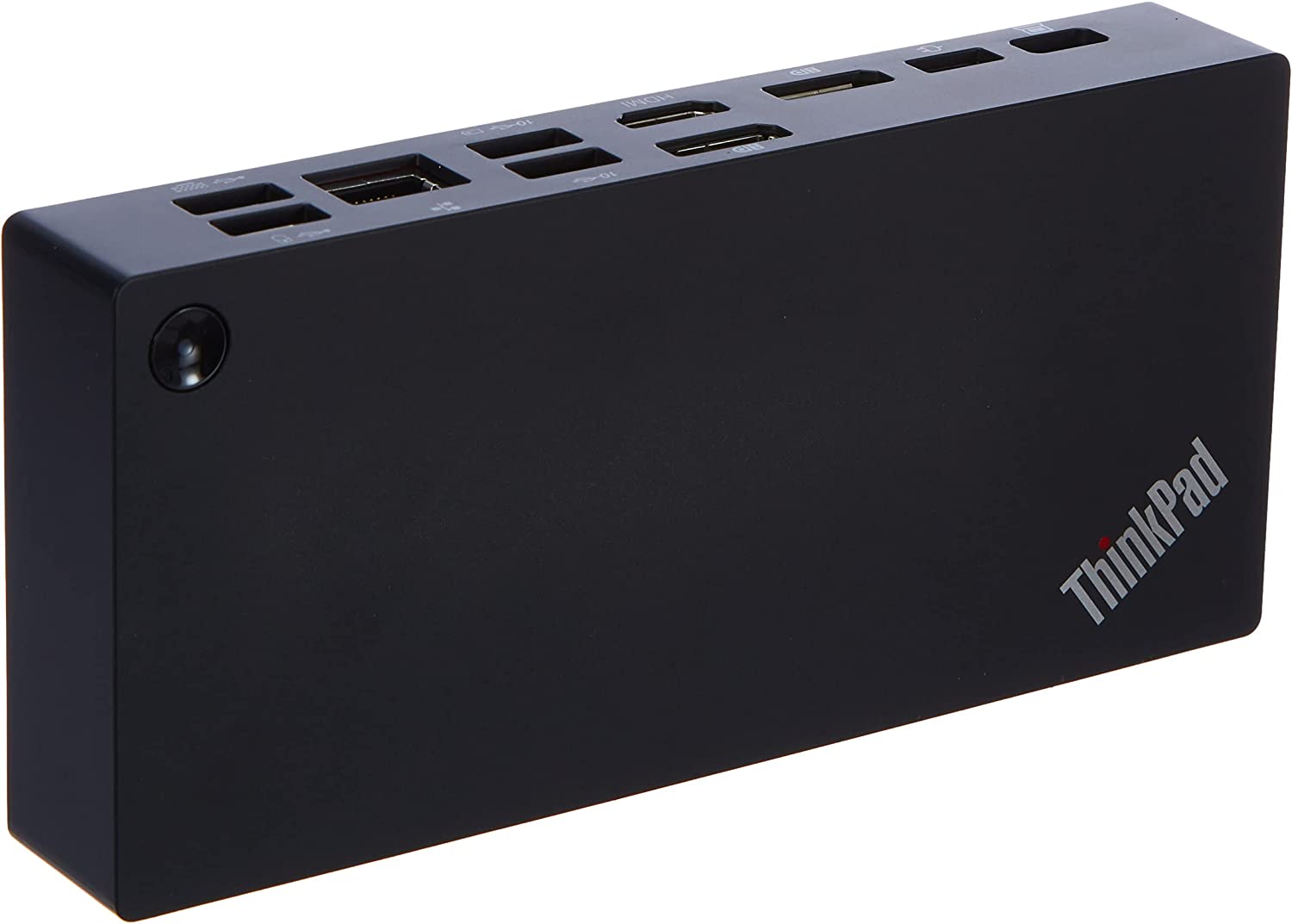
Best Lenovo Docking Station Models Compared
Different users have different requirements. Below are some commonly recommended Lenovo docking station models based on performance and connectivity needs.
Lenovo ThinkPad Universal USB-C Dock
This dock is suitable for general office productivity and hybrid work setups.
Best For
- Remote workers
- Office professionals
- Multi-monitor setups
Features
- USB-C connectivity
- Dual display support
- USB expansion ports
- Ethernet connectivity
This is one of the most versatile laptop docking station lenovo options available.
Lenovo Thunderbolt 4 Dock
This model is designed for high-performance workflows.
Best For
- Content creators
- Engineers
- Advanced multitasking
Features
- Thunderbolt 4 support
- Fast data transfer
- Multiple 4K monitor support
- Enhanced power delivery
Users handling demanding applications may benefit from this advanced lenovo dock station.
Lenovo ThinkPad Hybrid USB-C Dock
The hybrid dock works with both USB-C and USB-A systems.
Best For
- Mixed-device environments
- Older and newer Lenovo laptops
Features
- Flexible compatibility
- Enterprise-friendly design
- Multiple USB ports
- Display support
This docking station lenovo option is often used in organizations with multiple laptop generations.
Lenovo USB-C Mini Dock
Compact and portable, this dock is useful for travel and mobile professionals.
Best For
- Business travel
- Compact workstations
- Minimal desk setups
Features
- Lightweight design
- HDMI support
- USB expansion
- Portable connectivity
A smaller lenovo docking station can still provide essential connectivity without taking up much desk space.
Common Problems and Troubleshooting Tips
Even reliable docks can occasionally experience issues.
Dock Not Detecting Monitors
Possible causes include:
- Loose cables
- Outdated drivers
- Unsupported display settings
Updating graphics and dock firmware often resolves the issue.
Laptop Not Charging
Check:
- Power adapter wattage
- USB-C charging compatibility
- Cable condition
Some laptops require higher power delivery than entry-level docks provide.
USB Devices Disconnecting
Try:
- Updating firmware
- Reconnecting devices
- Avoiding overloaded USB hubs
Ethernet Not Working
Verify network drivers and ensure the Ethernet cable is properly connected.
Reliable support resources and tested hardware providers like Docks4U About Us can help users identify suitable docking solutions and reduce compatibility concerns.
Refurbished Lenovo Docks vs New Models
Many users consider refurbished docks as a cost-effective alternative.
Advantages of Refurbished Docks
- Lower cost
- Business-grade durability
- Tested functionality
- Sustainable purchasing option
What to Check Before Buying
- Port condition
- Included accessories
- Warranty availability
- Compatibility verification
Businesses upgrading office equipment often sell older docks that still perform reliably.
Services like We Buy Your Docks also support businesses looking to recycle or resell surplus docking hardware.
How to Choose the Right Lenovo Docking Station
Selecting the right dock depends on your workflow and laptop specifications.
Consider Your Monitor Setup
If you use multiple high-resolution displays, choose a dock with sufficient video output support.
Evaluate Connectivity Needs
Think about how many devices you connect regularly:
- USB accessories
- External drives
- Wired internet
- Audio equipment
Check Workspace Size
Compact docks work well for smaller desks, while larger workstation docks provide additional connectivity.
Match Performance Requirements
Basic office work may only require a USB-C dock, while creative professionals may benefit from Thunderbolt support.
Review Future Compatibility
Choosing newer standards like Thunderbolt 4 may improve long-term usability.
The Role of Docking Stations in Hybrid Work Environments
Hybrid work has increased demand for reliable workstation accessories.
Docking stations simplify transitions between office and home setups by allowing users to reconnect quickly without handling multiple cables every day.
A lenovo docking station also supports cleaner desk organization and improved productivity for employees working across multiple environments.
Businesses increasingly rely on standardized docking setups to improve workflow consistency and simplify IT management.
Conclusion
Choosing the right lenovo docking station depends on your laptop model, workspace requirements, and connectivity needs. Whether you need a compact USB-C dock for travel or a high-performance Thunderbolt solution for demanding tasks, Lenovo offers a range of reliable options.
Understanding compatibility, display support, charging requirements, and port availability helps ensure you select the right solution for long-term use.
Trusted providers such as Docks4U Contact Us can help users explore compatible Lenovo docking products and find solutions suited to professional and home office setups.